- Personal
- Kids
- Pets
- Seniors
- Business
Digital card × Anti-lost tracking × Multi-function tapping
Overview
What is Linknity?
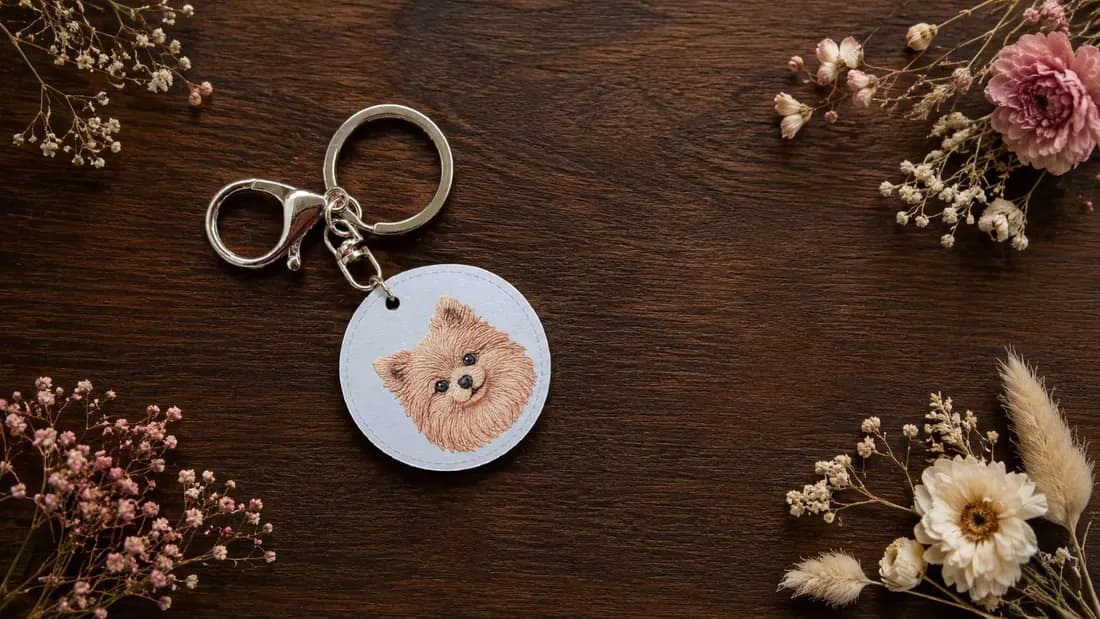
With the Linknity NFC smart keychain and its dedicated app, you can create a free personalized multi-link portal that brings all your important info together for quick sharing.
Step 1
Add your first card
Connect Instagram, YouTube, Podcasts, your website, and more—all in one place.
Step 2
Bind your Linknity
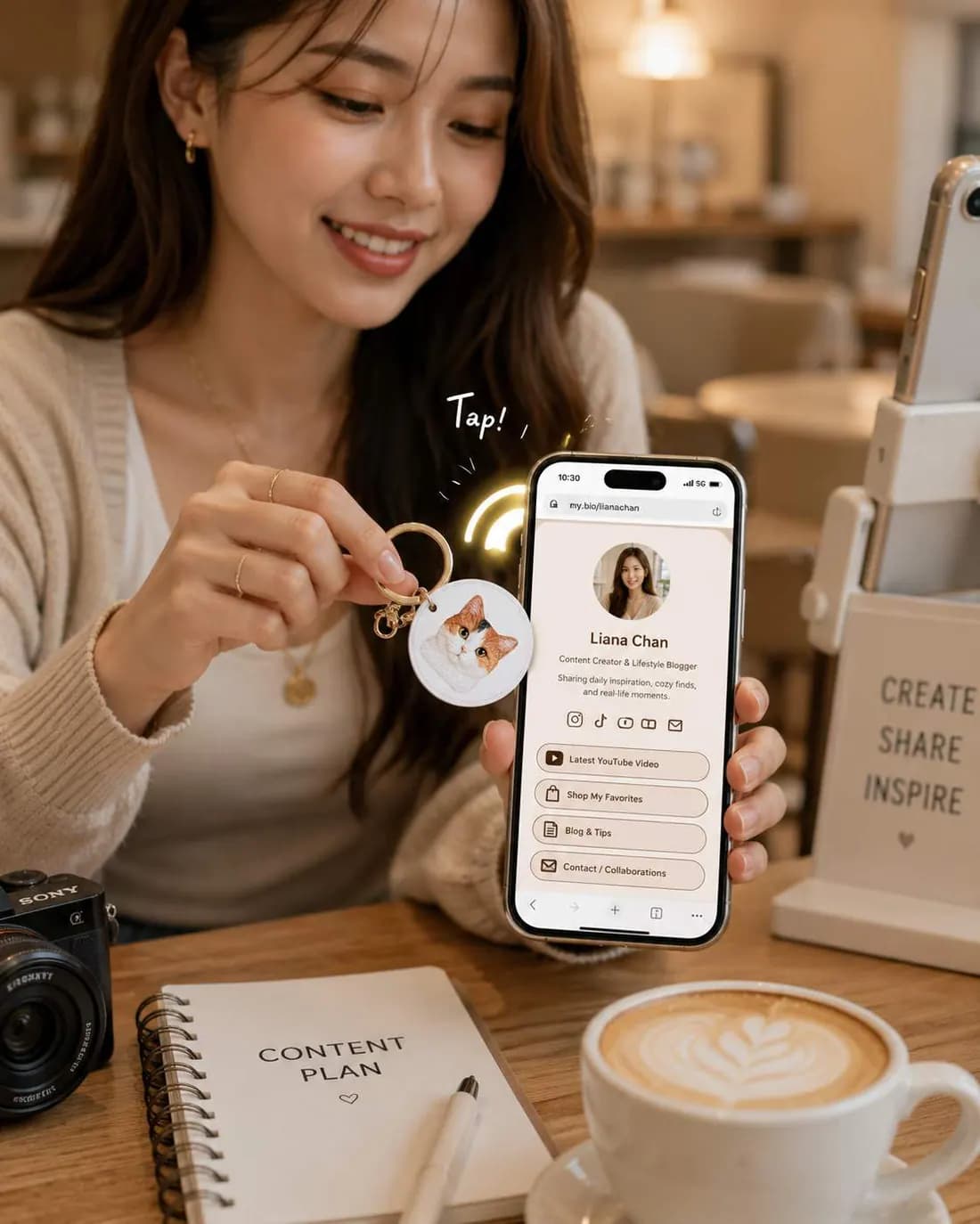
Built-in NFC chip: a light tap opens your exclusive link for anyone.
Step 3
Share & manage
Invite collaborators to update and maintain the digital content together.
Let's get it started!
Download the Linknity app
Scan and get started
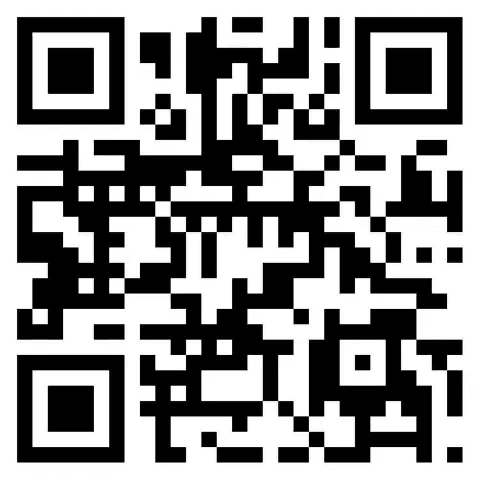
Scan the QR code above with your phone to open the Linknity app download page, then install from the App Store or Google Play for your device.
Sign in
After installing, sign in quickly with Google, Facebook, or LINE.


Step 1
Create your first card
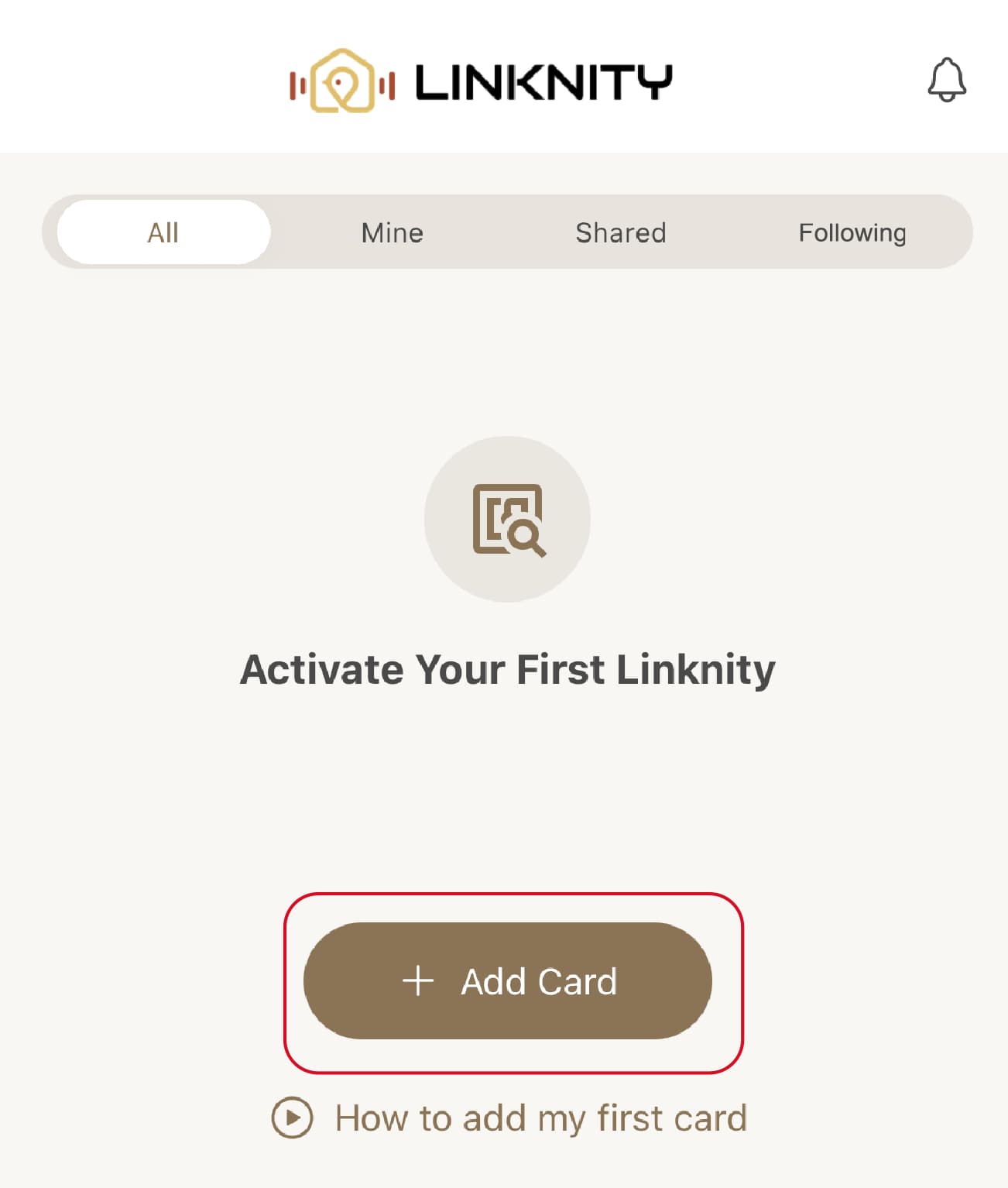
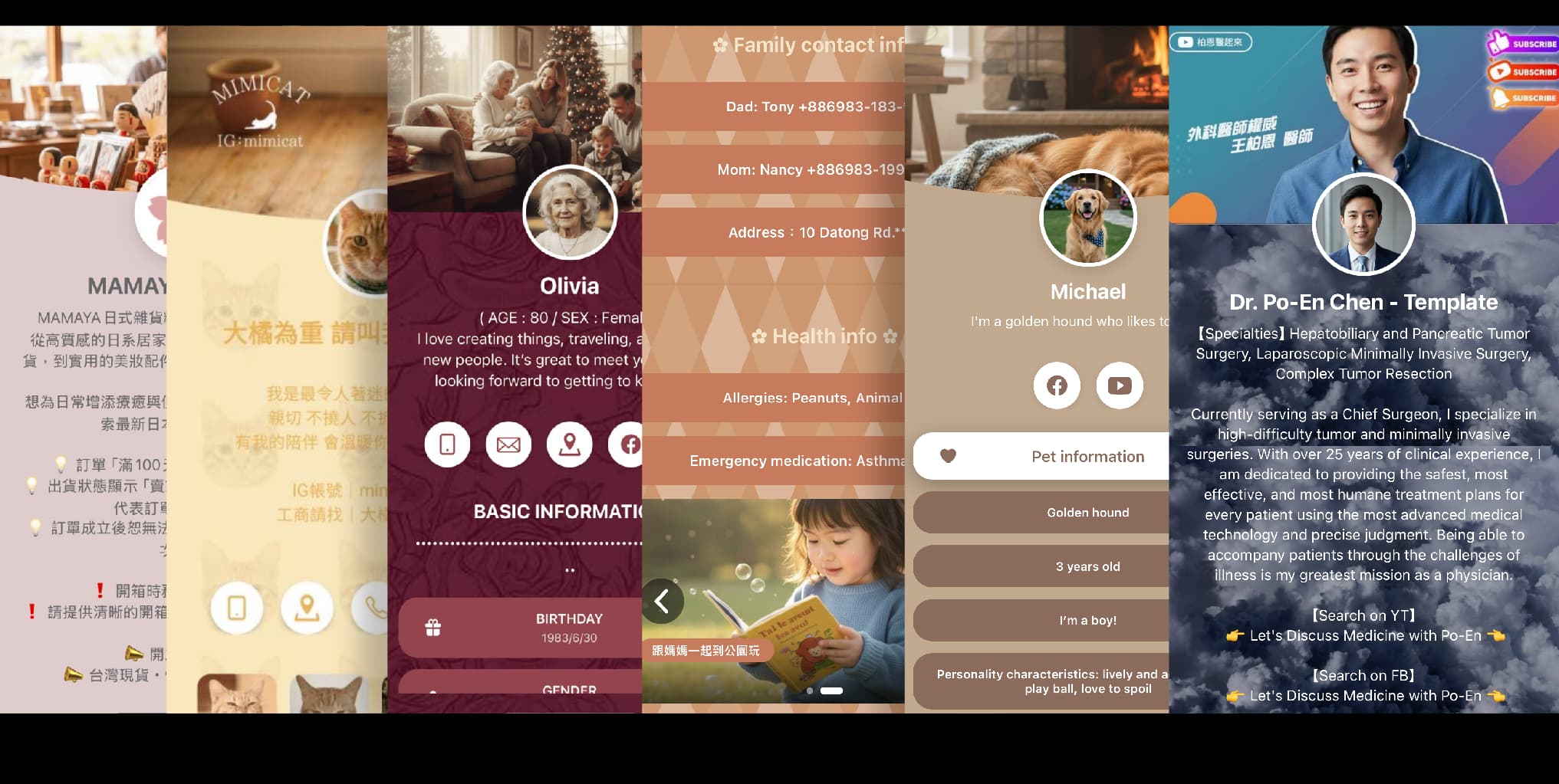
After signing in to the Linknity app, tap "Add Card" on the home screen to pick a template or create a personalized card.
Edit content
Profile & links
Upload a photo and update your profile—these appear in the top info bar.
Build social links in your profile: add LINE, Facebook, Instagram, a website, or other links to create your multi-link portal.
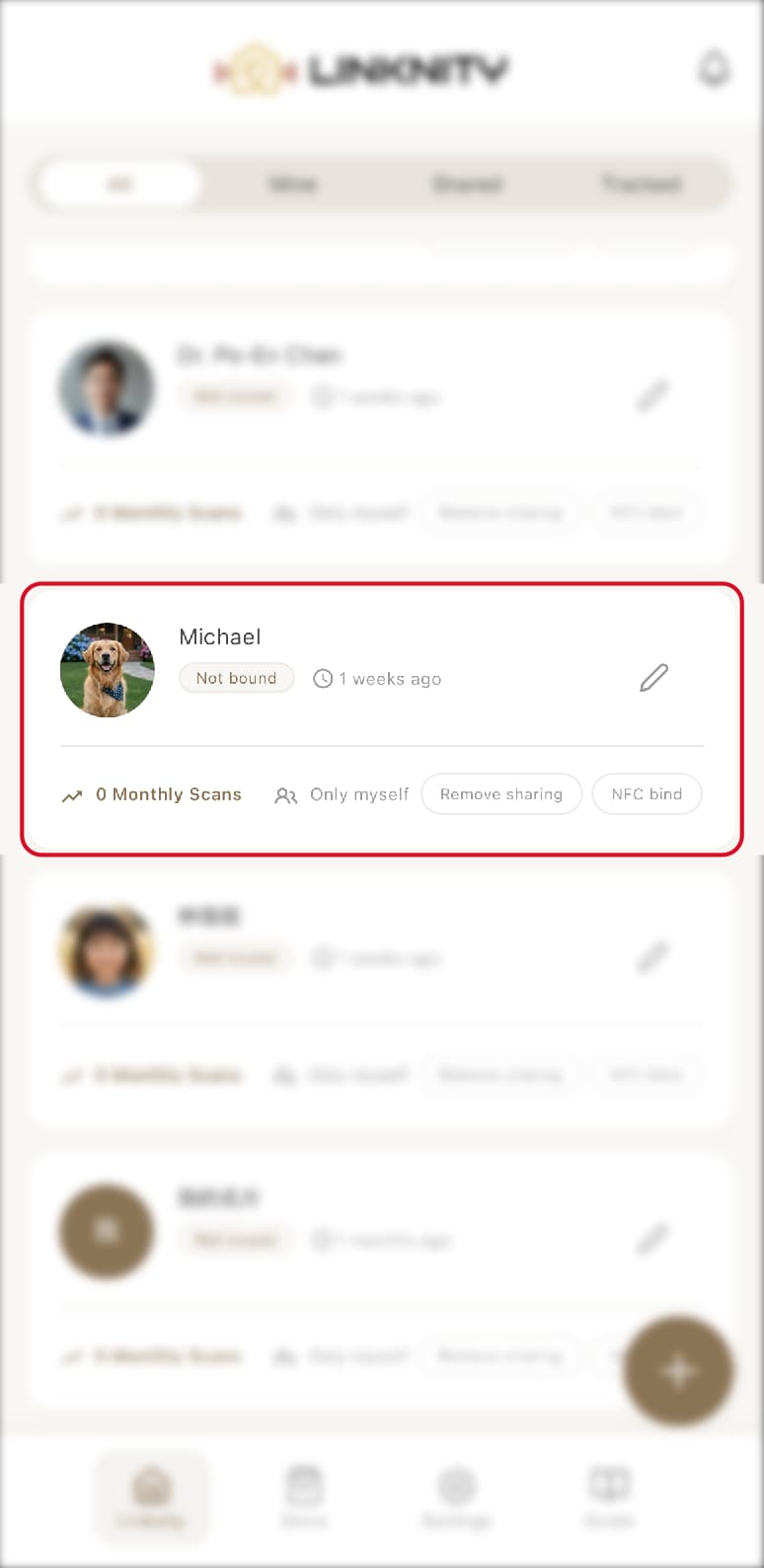
1. Select the card you just created
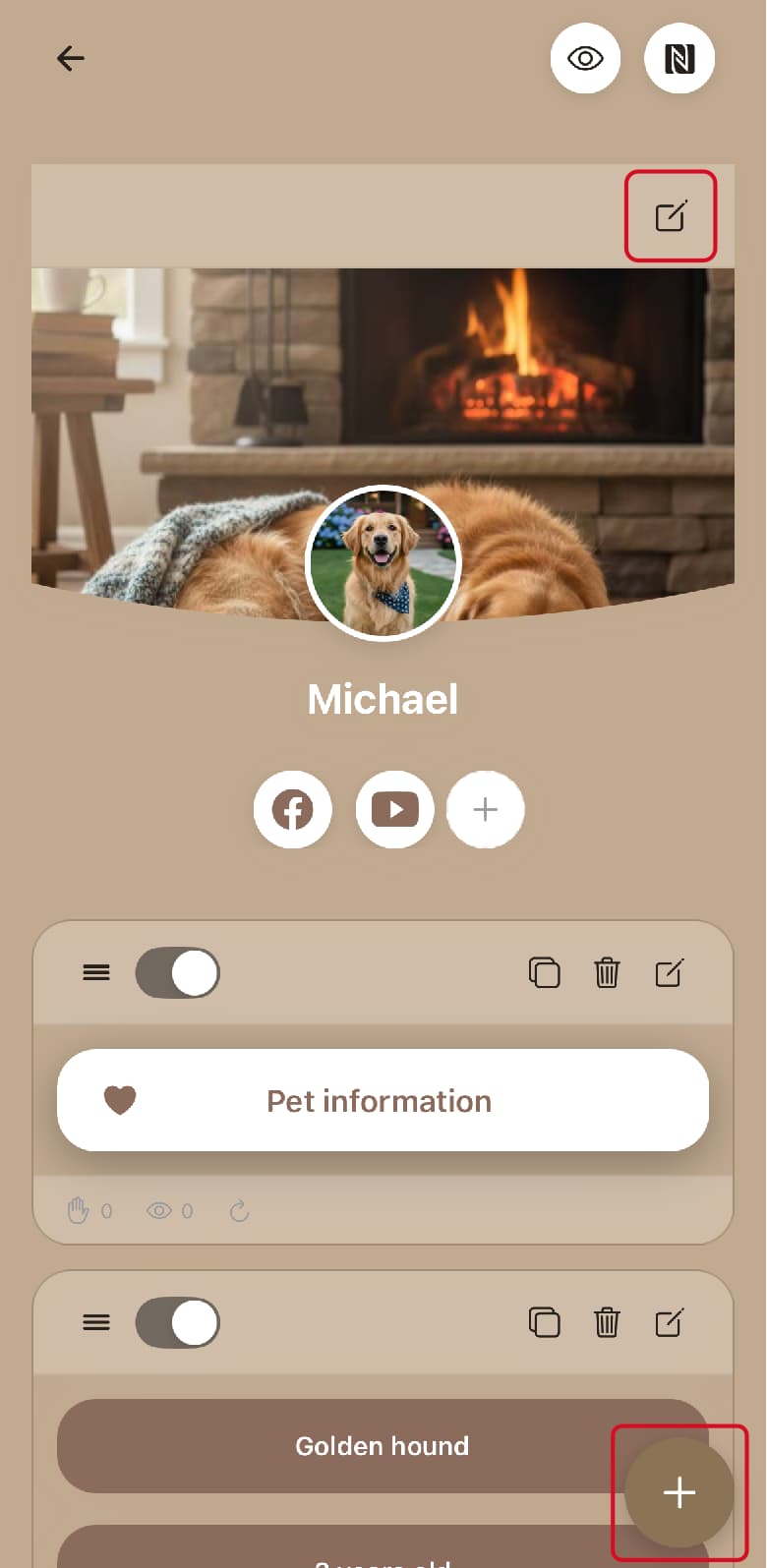
2. Edit info or add more blocks
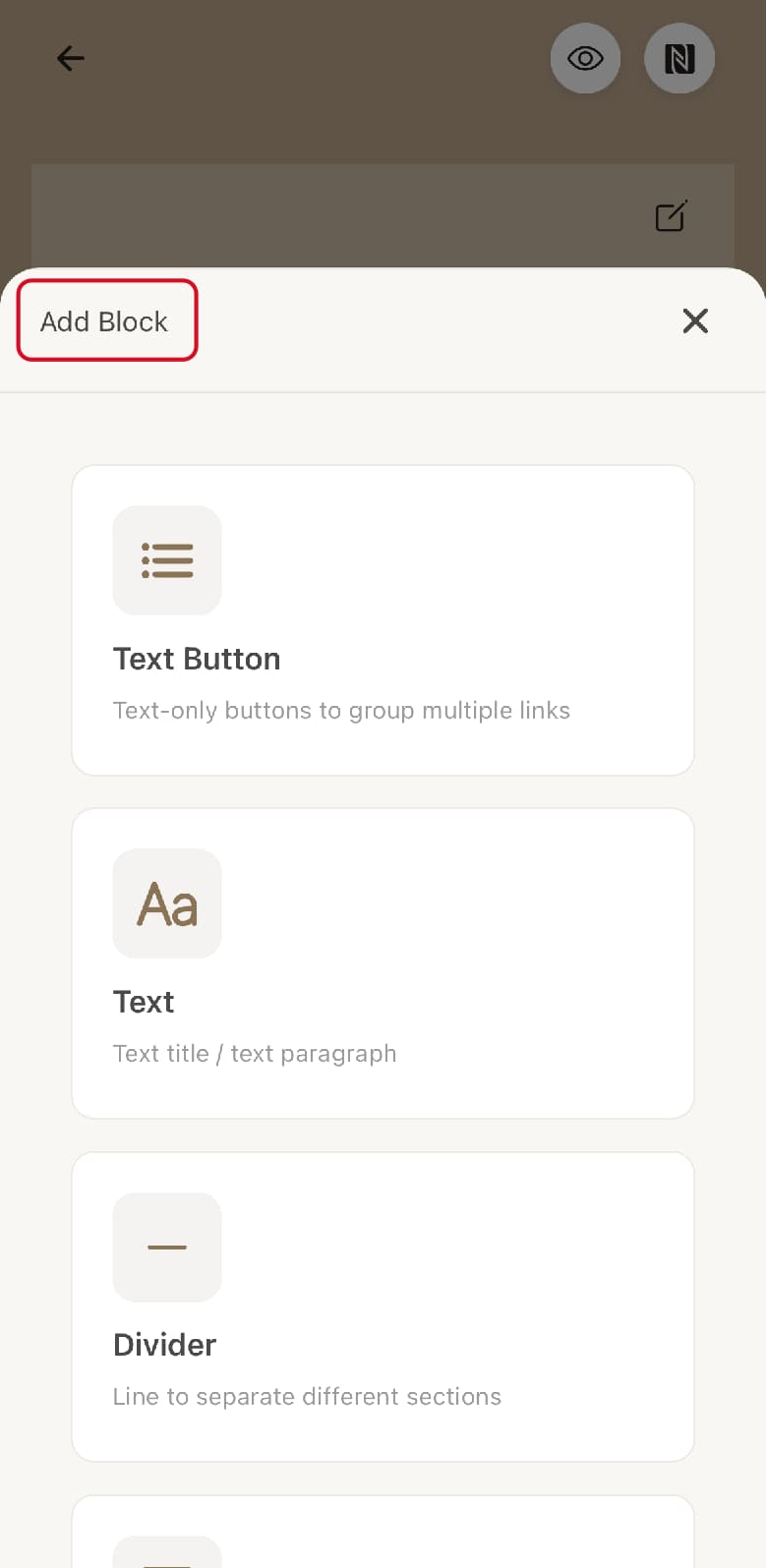
3. Use more options in “Add Block” to build flexibly
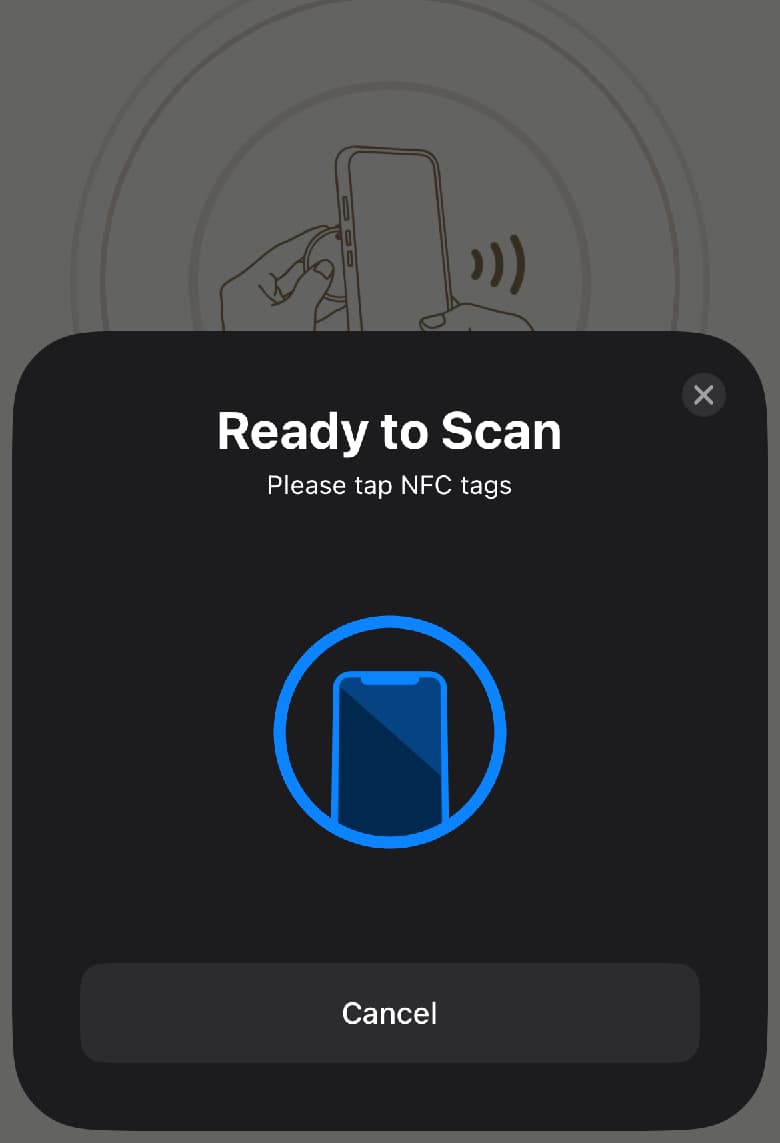
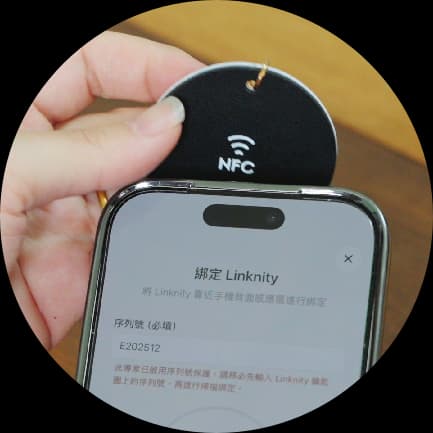
Bind NFC
Pair the smart keychain
NFC setup and preparation
Before you begin…
· Check NFC on your phone
Make sure your device supports NFC and that it is turned on in Settings.
· Network connection
Keep a stable network connection during binding to sync cloud data.
· Remove possible interference
Thick or metal phone cases may interfere with NFC.
· Unlock your phone while pairing
Keep the phone unlocked when pairing or binding Linknity.
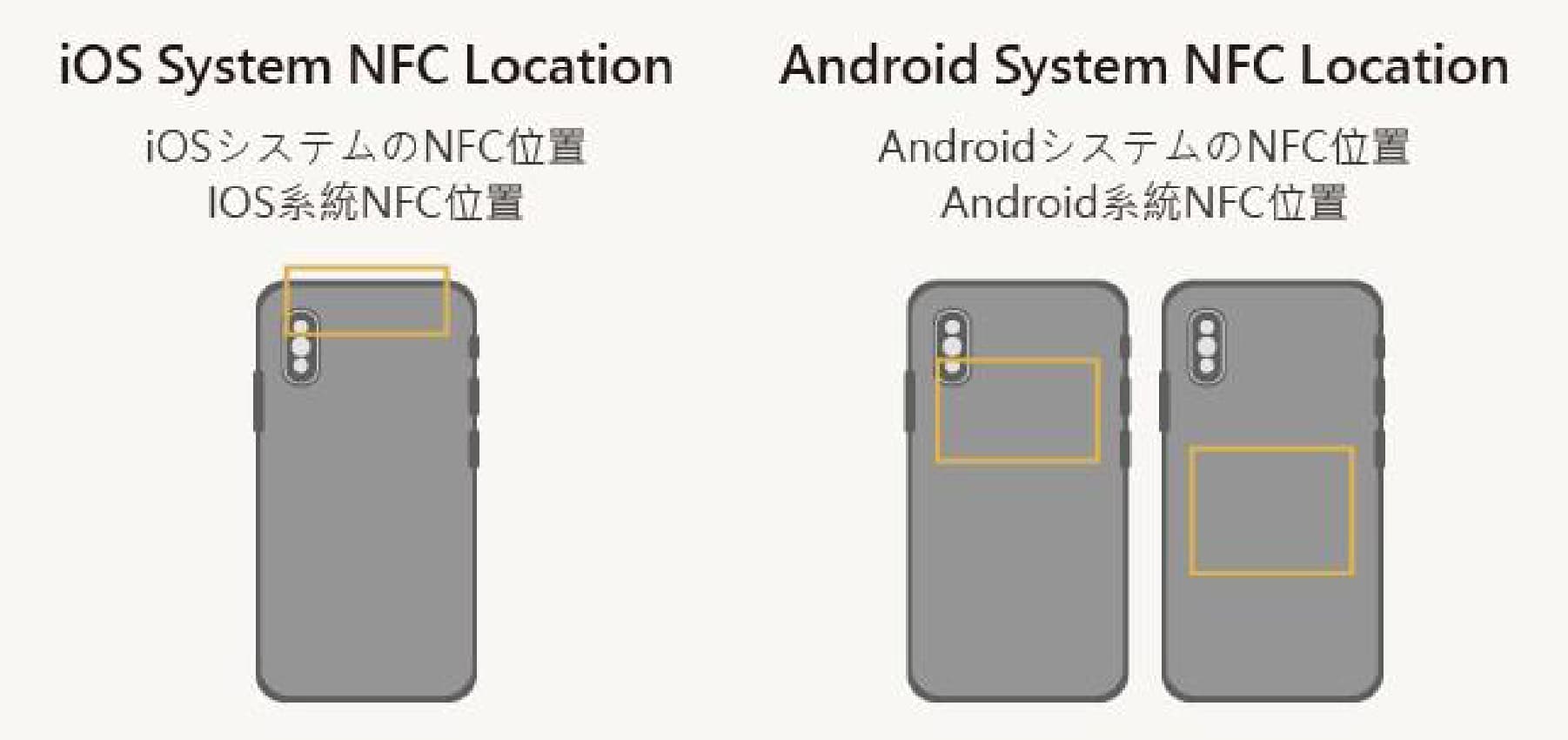
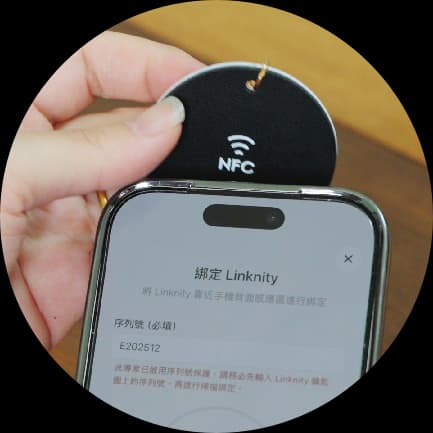
Enter the serial number and pair NFC
NFC setup and preparation
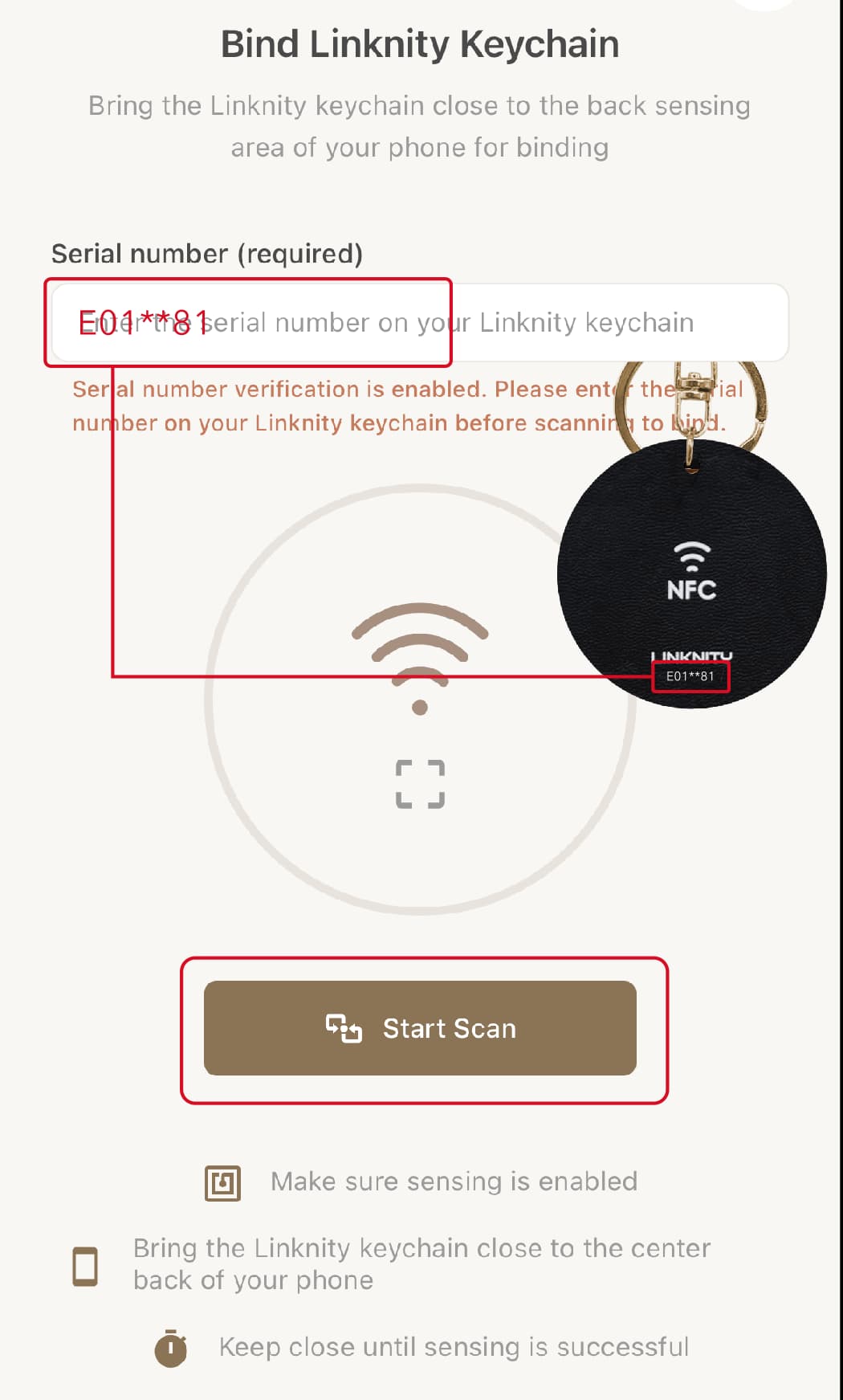
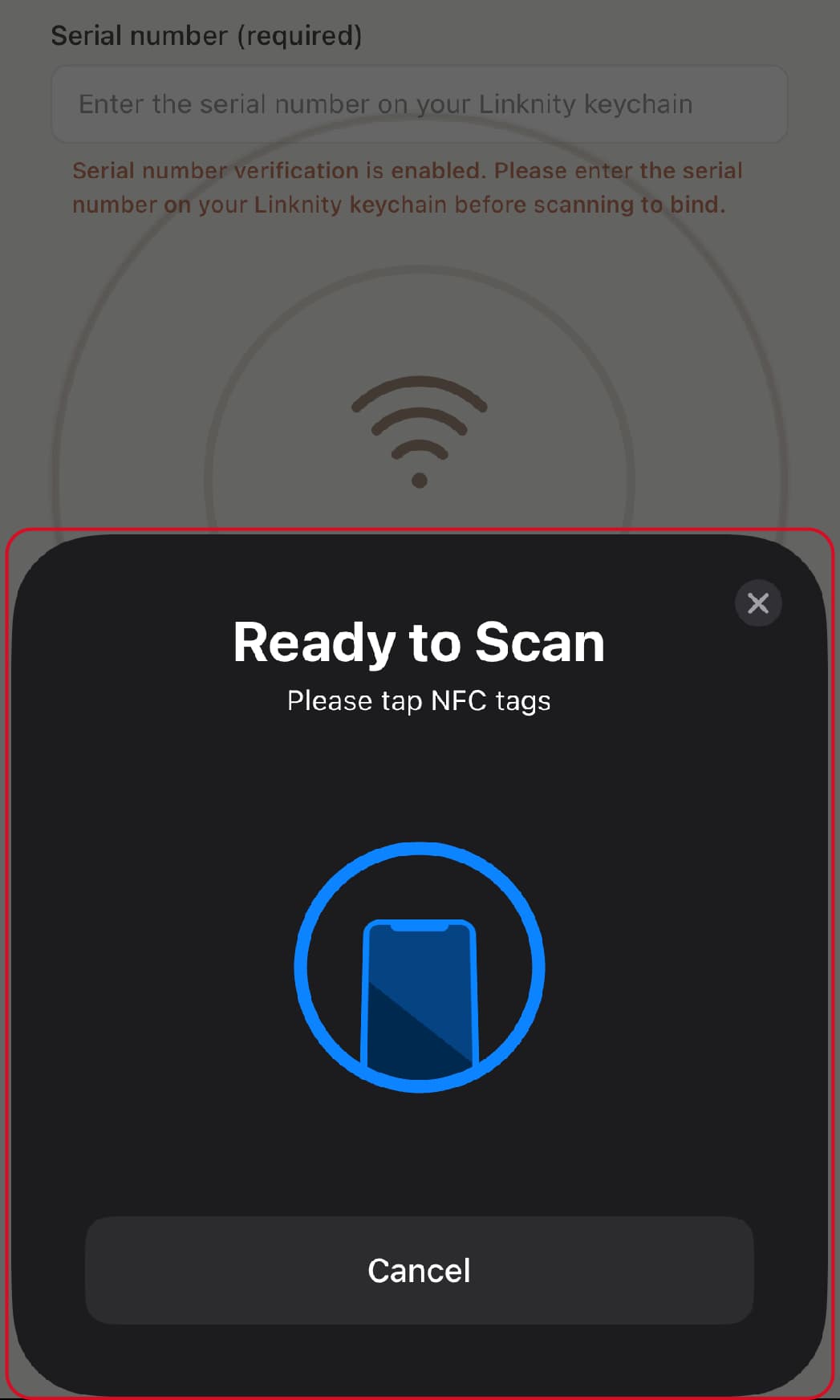
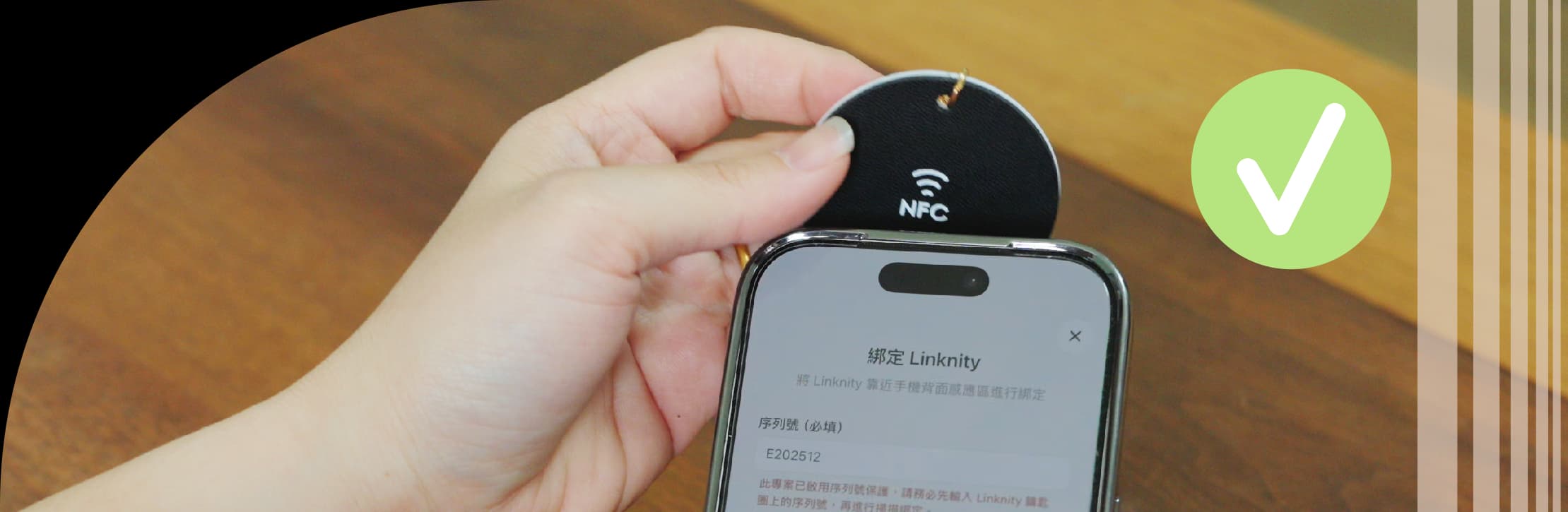
Linknity bound successfully!
Congratulations!
Your Linknity is ready to go!
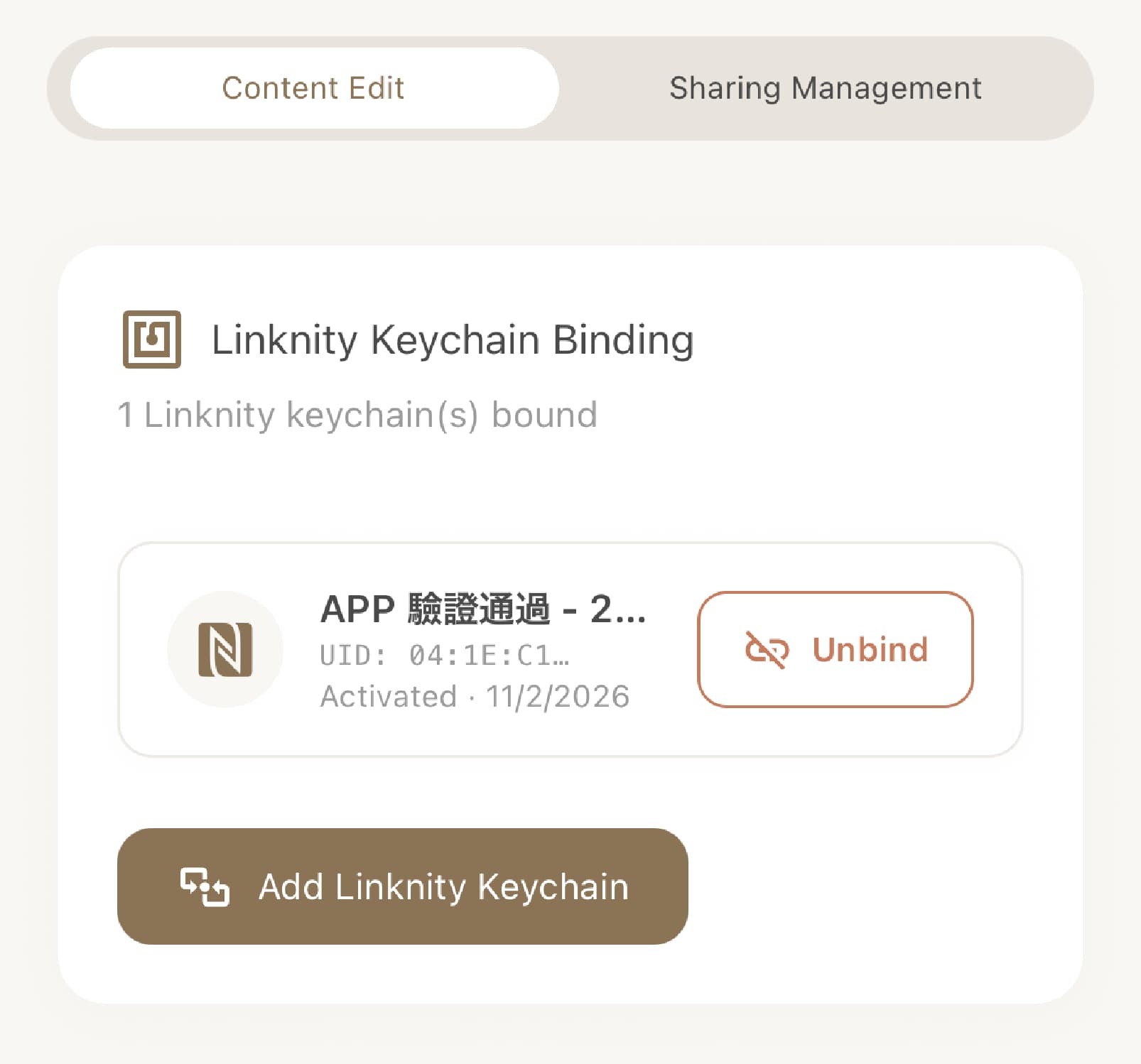
NFC read test checklist
· Scan with the app fully closed
Force-quit the app, then tap the keychain directly and confirm a link pops up.
· Check your links
Open the popped-up link and verify profile and social links are correct.
· Test on several devices
Try multiple phones to ensure stable reading on different devices.
Share & manage
Card sharing & management
Permission levels
- Owner
- Full access: edit all blocks, bind/unbind Linknity keychains, invite/remove collaborators.
- Collaborator
- Invited to edit card content. Cannot delete the card or unbind NFC.
How to add a collaborator
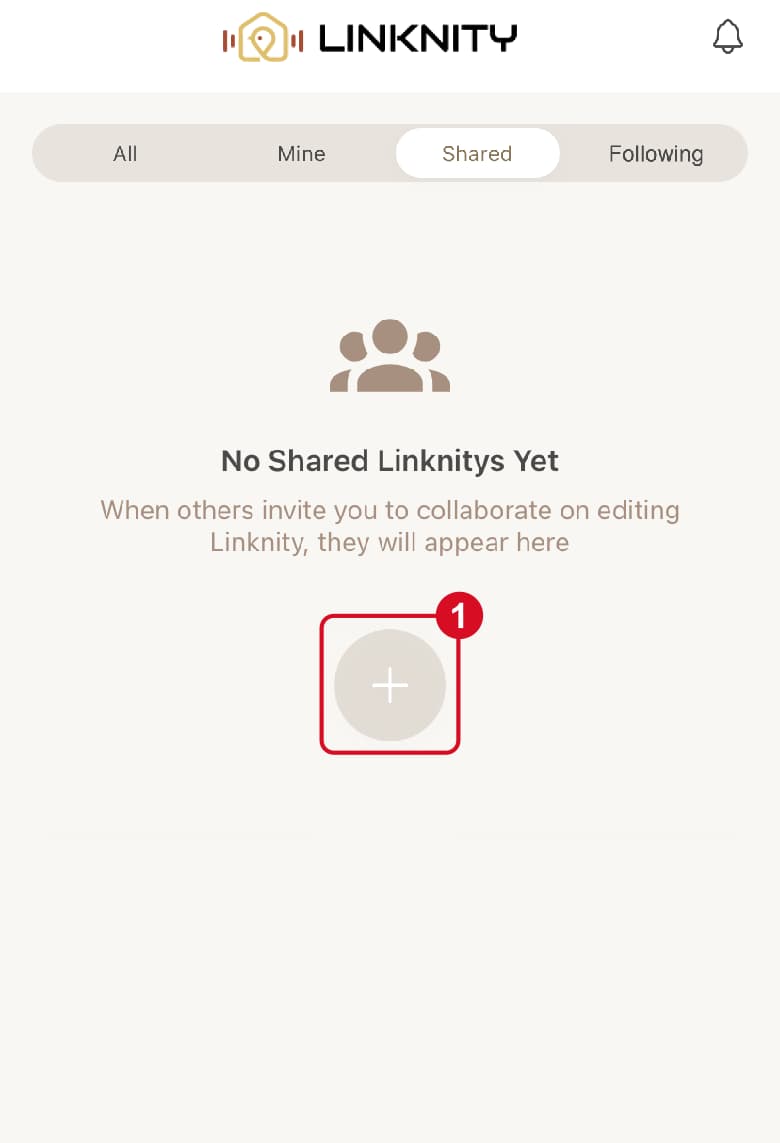
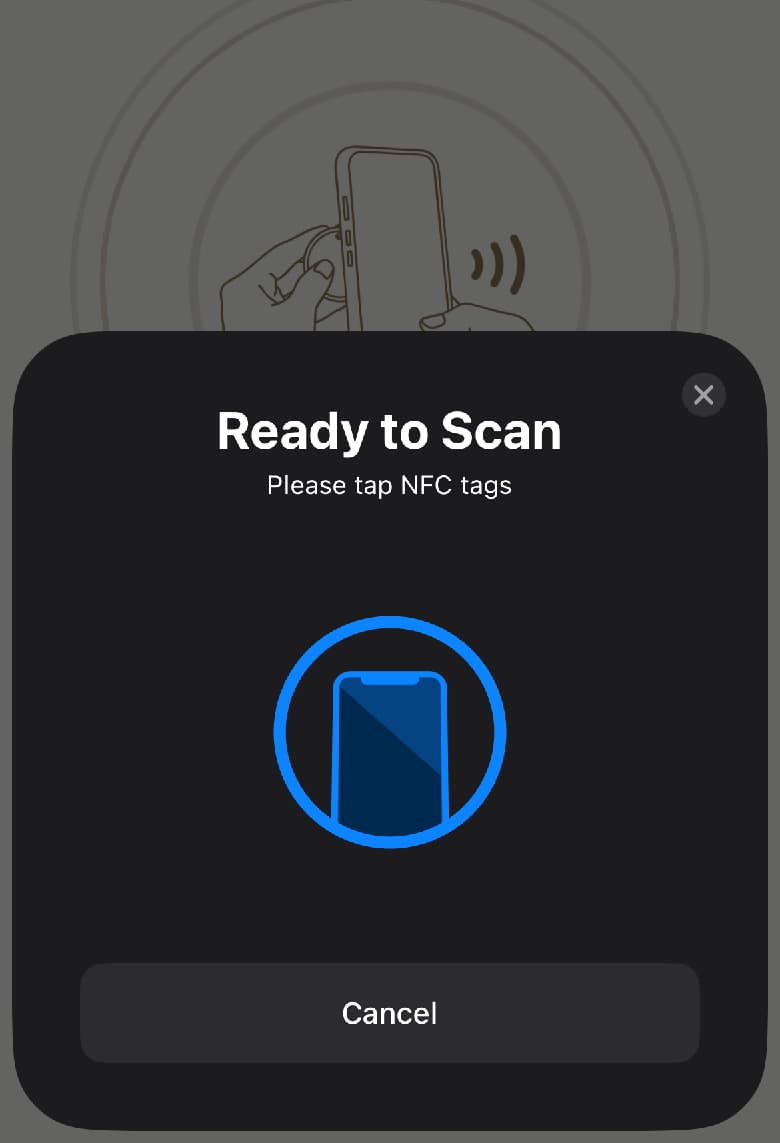
Tapbutton
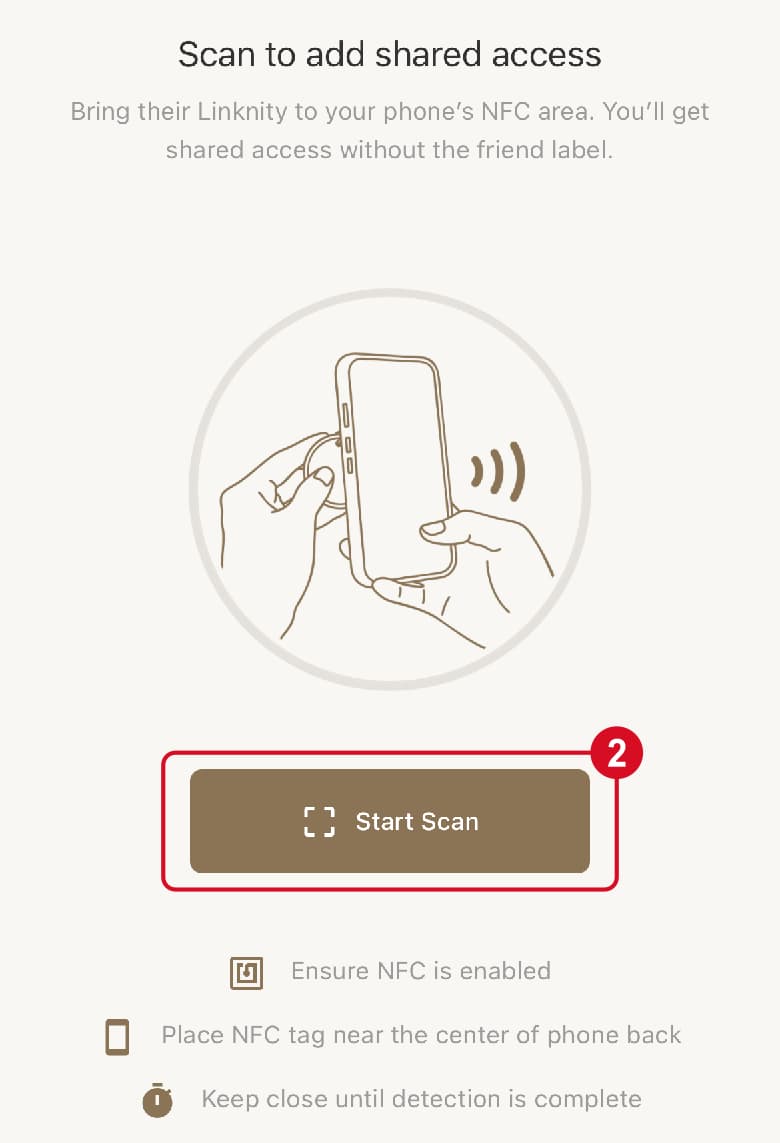
Start scan
Follow cards
Build a digital address book
You can also add and follow other people’s cards in the Linknity app to build your digital address book.
How to follow someone’s card
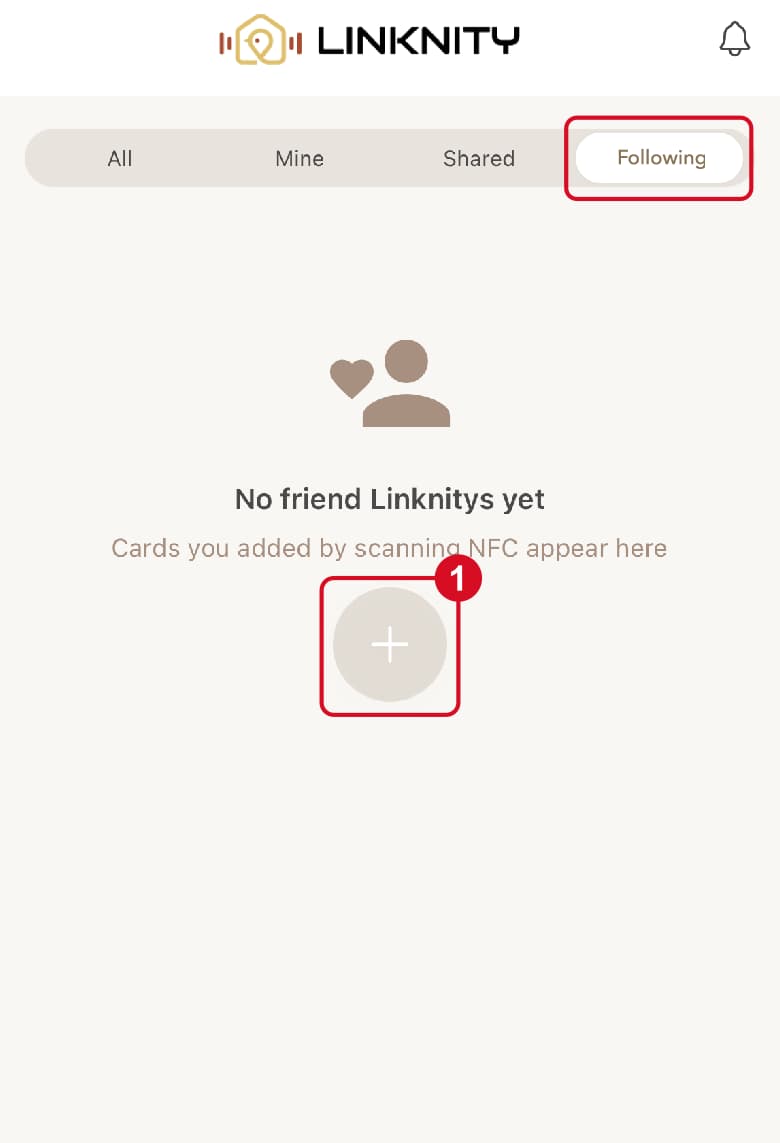
Tapbutton
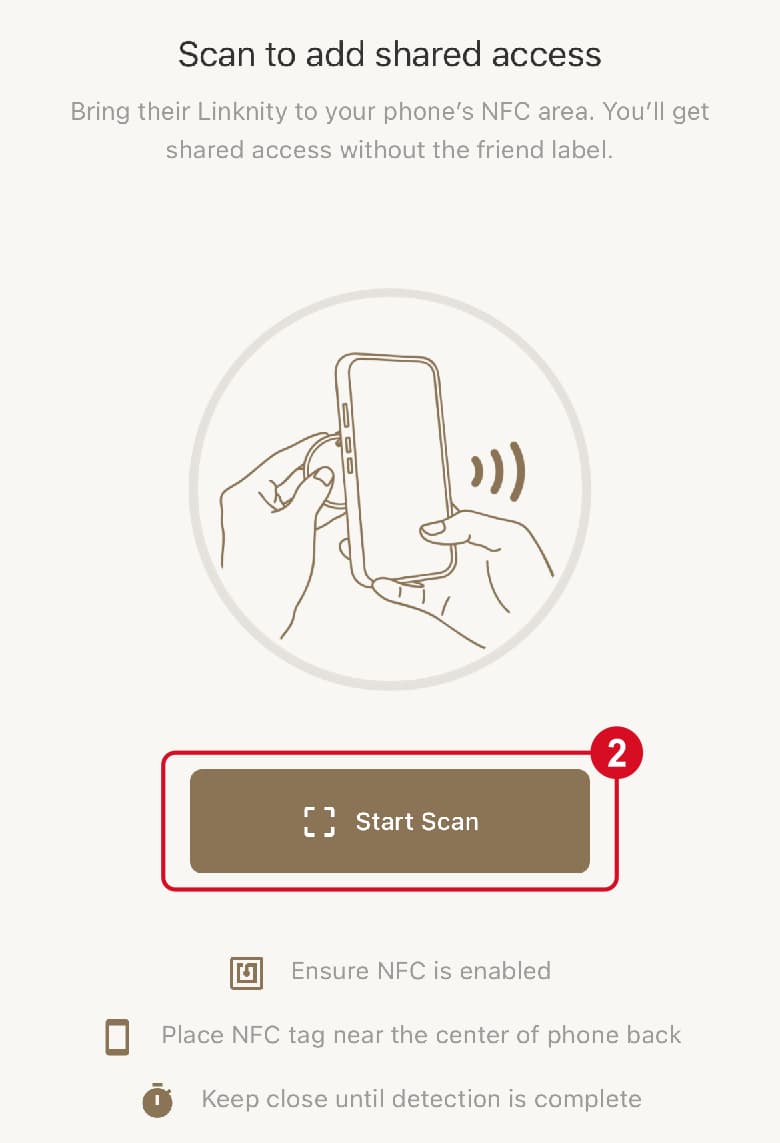
Start scan
Follow cards
Guest browsing
Can you scan without the Linknity app? Yes! Scanning opens a web link and shows the bound card.